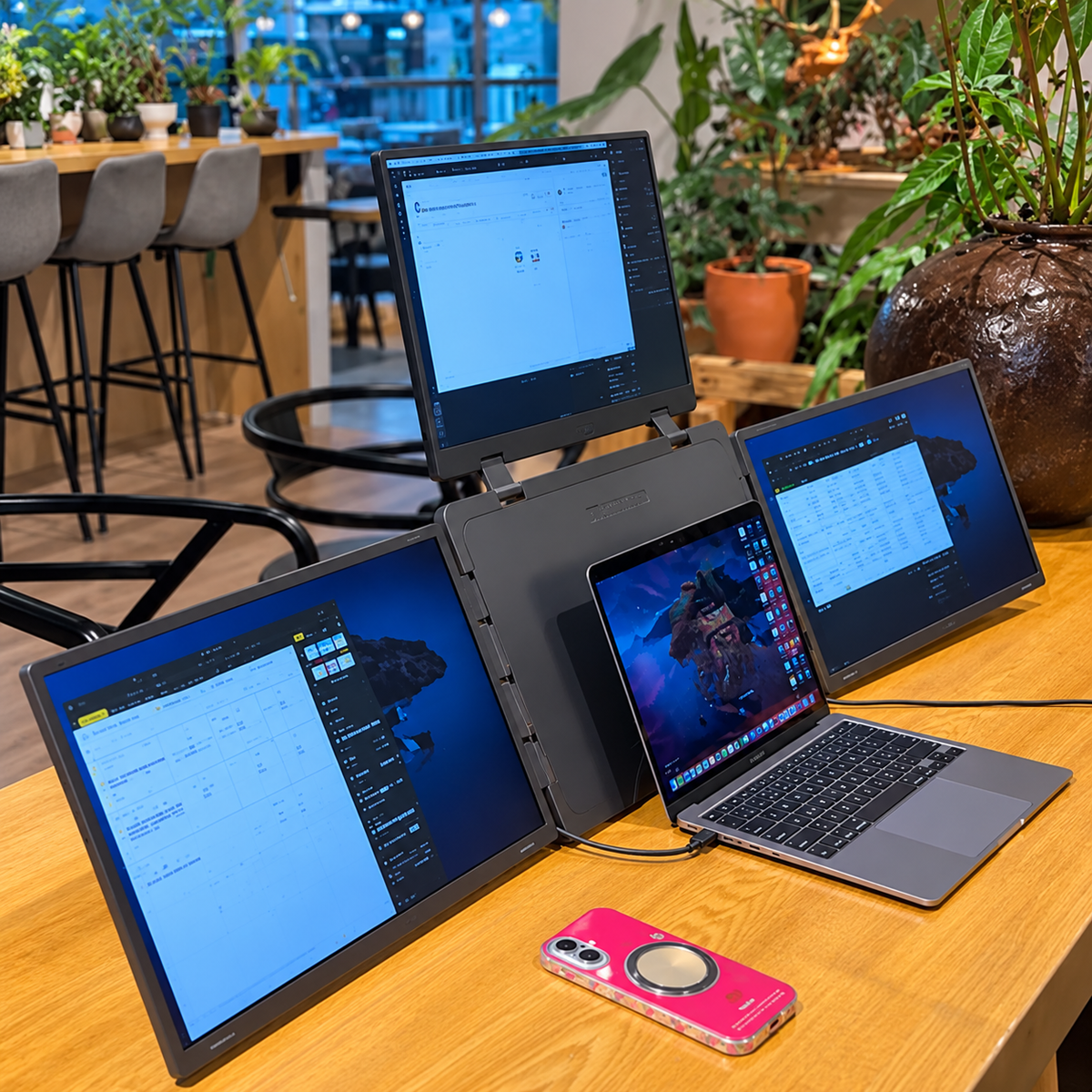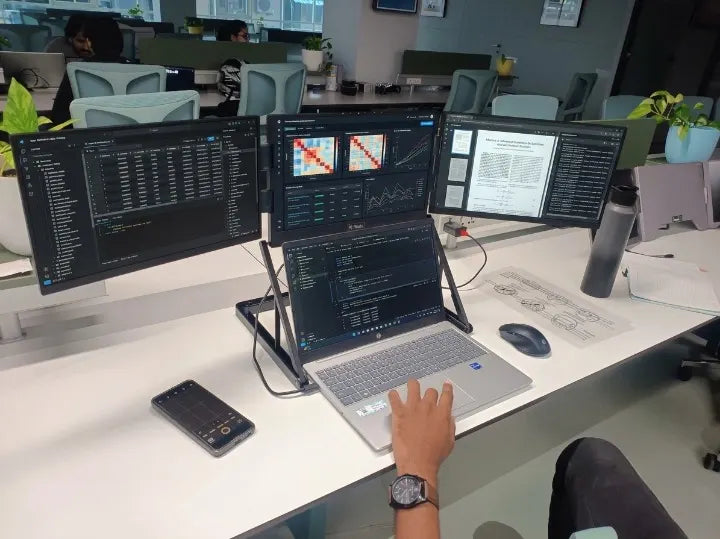

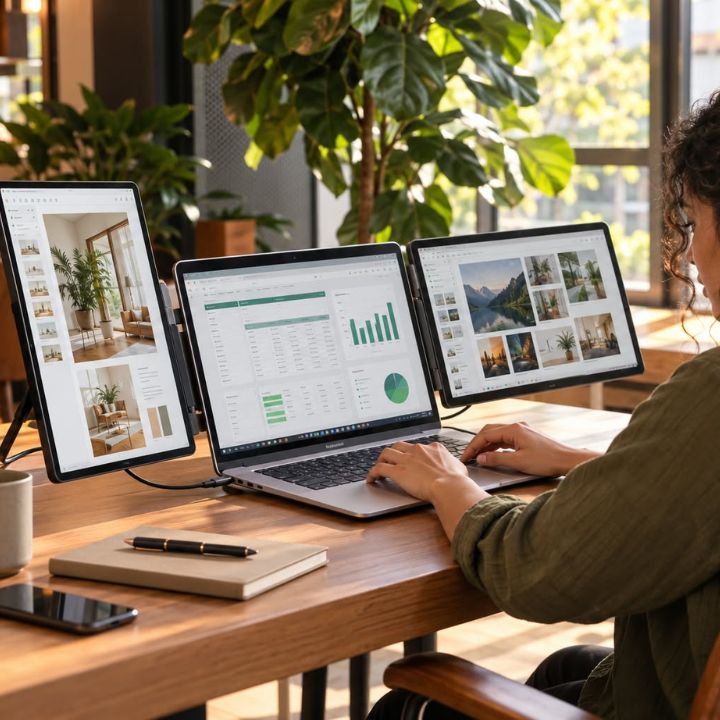
Laptop screen extender compatibility is one of the most important factors to consider before purchasing an additional display for your laptop. Whether you are a software developer, stock trader, digital marketer, or business professional, a laptop screen extender can help expand your workspace and improve multitasking. However, not every laptop supports every external monitor. Compatibility depends on several technical factors, including USB-C and HDMI connectivity, operating systems, graphics capabilities, and power requirements.
In 2026, professionals regularly manage multiple applications, online meetings, spreadsheets, coding environments, and business dashboards. Working with all these tools on a single laptop screen can make everyday tasks more challenging.
Portable laptop screen extenders offer a flexible solution by adding extra display space without requiring a permanent desktop workstation. However, choosing the right model requires understanding your laptop's technical capabilities.
RIITEK understands the growing need for flexible workspaces and offers portable display solutions designed to support professionals who manage multiple applications throughout their working day.
In this guide, we explain how laptop screen extenders work, their compatibility with Windows laptops and MacBooks, different connection methods, and the important factors to check before purchasing.
What Is a Laptop Screen Extender?
A laptop screen extender is a portable external display designed to expand the available workspace of a laptop. Depending on the model, it can add one, two, or three additional screens.
Unlike traditional desktop monitors, many laptop screen extenders feature foldable designs, adjustable viewing angles, and compact construction. These features make them convenient for professionals who work from home, travel frequently, or need flexible workstations.
For example, a digital marketer can keep an advertising dashboard open on one screen while reviewing reports on another. Similarly, a software developer can display coding tools, documentation, and testing applications across multiple screens.
With RIITEK, professionals can explore portable display options designed for coding, trading, digital marketing, and everyday business activities. Browse the complete portable monitor collection to compare available models and choose a suitable option for your laptop.
Key Benefits of Using a Laptop Screen Extender
- Expanded Workspace: View multiple applications without frequently switching between windows.
- Better Multitasking: Organize documents, dashboards, and communication tools across separate displays.
- Portable Design: Carry additional screens between home, office, and travel locations.
- Flexible Screen Arrangement: Position applications according to your workflow.
- Professional Convenience: Support coding, trading, designing, and business activities.
A suitable laptop screen extender can help create a more organized working environment while maintaining the portability of a laptop.
Why Laptop Screen Extender Compatibility Matters in 2026
Understanding laptop screen extender compatibility is essential because different laptops have different external display capabilities.
Two laptops may include similar-looking USB-C ports but support different functions. For example, one USB-C port may support video output, while another may provide only charging and data transfer.
Additionally, some laptops support multiple independent external displays, while others have limitations based on their graphics hardware or processor.
1. Avoid Unexpected Connection Problems
One common issue occurs when users purchase a portable monitor without checking their laptop's video-output capabilities.
A screen extender may require USB-C video support, while the laptop provides only a data-enabled USB-C port.
As a result, the additional display may not be detected.
Checking the technical specifications in advance can help prevent these situations.
2. Ensure Proper Multi-Screen Functionality
Not every laptop supports the same number of independent external displays.
Some laptops can operate several monitors simultaneously, while others have limitations based on their processor, graphics hardware, or connection arrangement.
These differences become particularly important when using tri-screen or quad-screen laptop extenders.
3. Understand Additional Equipment Requirements
Certain portable monitors work through compatible video connections without additional software.
Others require drivers, adapters, docking stations, or separate power connections.
Understanding these requirements helps buyers determine whether additional equipment will be necessary.
4. Choose the Right Screen Configuration
Compatibility is not only about connecting a monitor successfully.
It also involves choosing a display configuration that matches the laptop's capabilities and the user's working requirements.
A professional who needs one additional screen may prefer a compact portable monitor. Meanwhile, someone working with several applications may benefit from a tri-screen setup.
What Determines Laptop Screen Extender Compatibility?
Several technical factors influence whether a portable monitor will work correctly with your laptop.
Operating System Support
The operating system determines how external displays are recognized and managed.
Many portable monitors support Windows and macOS. However, compatibility varies depending on the screen extender model and connection technology.
Some external monitors work through standard video connections, while others require additional software.
Always confirm the supported operating system and version before purchasing.
Available Laptop Ports
Laptop ports play a major role in external display connectivity.
Common connection options include:
-
USB-C with DisplayPort Alt Mode
-
Thunderbolt 3 or Thunderbolt 4
-
HDMI
-
USB-A with compatible USB graphics hardware
Each connection method has different capabilities.
For example, USB-C can support video and power transmission when both devices provide the necessary functionality.
However, not every USB-C port supports external video output.
Graphics Hardware
The laptop's processor and graphics hardware influence the number of external displays it can operate.
Some laptops support one external monitor, while others support two or more independent displays.
The maximum supported resolution and refresh rate may also vary.
Power Requirements
Portable monitors require electrical power to operate.
Some models receive power through compatible USB-C connections. Others need separate USB power cables or external adapters.
Insufficient power can result in screen flickering, unexpected disconnections, or unstable operation.
Physical Laptop Compatibility
Certain laptop screen extenders attach directly to the laptop body.
Therefore, users must check the supported laptop dimensions, thickness, mounting requirements, and available workspace.
A monitor may support the laptop electronically but still be unsuitable for its physical design.
USB-C vs HDMI vs USB-A: Which Connection Is Suitable?
Understanding the differences between common connection methods is important when selecting an external monitor for a laptop.
| Feature | USB-C | HDMI | USB-A |
|---|---|---|---|
| Video output | On compatible video-enabled ports | Yes | Requires compatible USB graphics technology |
| Power delivery | Possible | Normally separate power required | Depends on equipment |
| Driver requirements | Depends on connection technology | Generally no additional display software | Often requires additional software |
| Cable convenience | May support one-cable operation | Usually separate video and power | Depends on adapter or display |
| Best suited for | Compatible modern laptops | Standard external display connections | Supported USB display solutions |
USB-C Connectivity
USB-C is commonly used in modern portable monitors because compatible ports may support video and power through a single connection.
This can reduce cable clutter and make portable workstation setups more convenient.
However, users should confirm that the laptop supports the required video-output technology.
HDMI Connectivity
HDMI is widely used for connecting laptops to external monitors.
It provides digital video transmission and is useful when compatible USB-C video output is unavailable.
However, portable monitors connected through HDMI generally require an additional power connection.
USB-A Connectivity
USB-A is primarily designed for data transfer and power delivery.
It does not directly provide standard HDMI or DisplayPort video output.
However, compatible USB graphics adapters or display systems can enable external monitor functionality through USB-A.
Such solutions may require specific drivers and have their own performance limitations.
How to Check Laptop Screen Extender Compatibility Before Buying
Checking laptop screen extender compatibility before purchasing can help prevent unnecessary installation difficulties.
Follow these steps to determine whether your laptop supports the selected portable monitor.
Step 1: Identify Your Laptop Model
Find the exact model number of your laptop.
You can usually locate this information in system settings, on the device label, or in the manufacturer's documentation.
Review the technical specifications to identify supported external display connections.
Step 2: Check the Available Ports
Identify whether your laptop includes USB-C, Thunderbolt, HDMI, or USB-A connections.
Pay particular attention to USB-C specifications because identical-looking ports may support different functions.
Step 3: Confirm Video Output Support
If you plan to connect a portable monitor through USB-C, verify that the port supports the required video-output technology.
If your laptop uses HDMI, confirm that the monitor accepts a compatible HDMI signal.
Step 4: Verify External Display Limits
Check how many independent external monitors your laptop can support.
This is especially important when purchasing a tri-screen laptop extender that adds two displays.
Step 5: Review Power Requirements
Check whether the selected monitor requires external power.
Some multi-screen configurations may need additional power even when video transmission is supported.
Step 6: Confirm Physical Compatibility
Review the screen extender's supported laptop size and mounting requirements.
Check whether your laptop can accommodate the additional display arrangement safely.
Step 7: Check Installation Requirements
Read the product's setup instructions.
Confirm whether the monitor requires drivers, adapters, or specific operating-system settings.
Completing these checks can help reduce compatibility-related problems.
Are Laptop Screen Extenders Compatible With Windows Laptops?
Many Windows laptops support portable external monitors through HDMI, USB-C, or Thunderbolt connections.
However, the number of supported displays depends on the laptop's hardware.
Windows 10 and Windows 11 Support
Windows includes built-in settings for managing external monitors.
Users can generally select different display modes:
- Duplicate displays
- Extend displays
- Show content on one selected display
The Extend option allows supported external monitors to function as additional desktop space.
For example, users can keep their main application on the laptop screen while opening spreadsheets, documents, or communication tools on additional displays.
However, Windows settings cannot overcome the laptop's hardware limitations.
Before purchasing, confirm that the laptop supports the required number of external screens and their intended resolutions.
Do Laptop Screen Extenders Work With MacBooks?
Many MacBooks can connect to compatible portable monitors.
However, external display support varies depending on the MacBook model, processor, and connection method.
Intel-Based MacBooks
Different Intel-based MacBooks support different external display configurations.
The number of supported monitors depends on the model's graphics hardware and available connections.
Apple Silicon MacBooks
MacBooks powered by Apple Silicon have model-specific external display limitations.
Some models support fewer native external monitors than others.
Certain configurations may require compatible adapters or additional display software to operate multiple independent screens.
Therefore, MacBook users should verify the external display specifications of their exact model before purchasing.
Important MacBook Compatibility Checks
Before choosing a laptop screen extender, confirm the MacBook's processor, supported external display count, available USB-C or Thunderbolt ports, and any software requirements.
These checks are particularly important for tri-screen laptop setups.
15.6-Inch Tri-Portable Monitor: Features That Matter
The 15.6-Inch Tri-Portable Monitor Laptop Screen Extender is designed for professionals who need additional display space while maintaining a portable laptop-based workstation.
It adds two external displays to a compatible laptop, creating a three-screen working environment.
Two Additional 15.6-Inch Full HD Displays
The tri-portable monitor features two additional 15.6-inch IPS screens.
Each display offers a resolution of 1920 × 1080 pixels and a 60Hz refresh rate.
This provides additional workspace for documents, spreadsheets, coding environments, and other professional applications.
IPS Display Technology
IPS panel technology supports wide viewing angles, making it useful when positioning multiple screens around a laptop.
This can help maintain a consistent viewing experience when working across different display angles.
Flexible Screen Positioning
The portable monitor features a foldable design with adjustable viewing positions.
Users can arrange the additional displays according to their workspace and preferred viewing setup.
Multiple Connectivity Options
The product supports compatible USB-C and HDMI connection arrangements.
The exact cable configuration depends on the laptop's available ports and external display capabilities.
Portable Construction
The foldable design allows users to carry the additional displays between different work locations.
This makes it a practical alternative to maintaining separate desktop monitors in multiple locations.
Laptop Compatibility Considerations
The product is intended for compatible Windows and macOS laptops.
However, buyers should confirm their exact laptop model, supported external displays, physical dimensions, and connection requirements before purchasing.
This is particularly important for MacBooks and laptops with limited video-output capabilities.
Who Should Consider a Tri-Screen Laptop Extender?
A tri-screen laptop extender can be useful when additional display space serves a clear professional purpose.
Software Developers and Programmers
Developers frequently work with code editors, debugging tools, documentation, and application previews.
A three-screen arrangement can help keep these applications visible simultaneously.
Stock Traders and Financial Professionals
Traders often monitor charts, watchlists, research information, and trading platforms.
Additional displays can help organize these tools across separate screens.
However, more screens do not guarantee better trading decisions or financial outcomes.
Digital Marketing Professionals
Digital marketers regularly manage advertising dashboards, analytics reports, spreadsheets, and content calendars.
A multi-screen setup can help separate these activities and reduce unnecessary window switching.
Data Analysts and Business Professionals
Professionals working with spreadsheets, reporting dashboards, and databases often need to compare information from multiple sources.
Additional screens can make this information easier to organize.
Remote Workers and Business Owners
Remote professionals frequently work with online meetings, emails, documents, and project management tools.
A portable screen extender can help create a flexible workspace across home and office locations.
Single Portable Monitor vs Tri-Screen Laptop Extender
Not every professional requires three screens.
The right configuration depends on the number of applications used simultaneously and the importance of portability.
| Feature | Single Portable Monitor | Tri-Screen Laptop Extender |
|---|---|---|
| Additional displays | 1 | 2 |
| Total screens with laptop | 2 | 3 |
| Workspace | Everyday multitasking | More demanding workflows |
| Portability | Generally lighter | Foldable but larger |
| Setup requirements | Usually simpler | More compatibility checks |
| Desk space | Lower requirement | More space required |
| Typical users | Students, office users | Developers, traders, analysts |
| Cost | Generally lower | Generally higher |
A single portable monitor may be sufficient for users who primarily work with documents, browsing, and online meetings.
However, professionals who regularly manage several applications may find a tri-screen arrangement more convenient.
The important consideration is choosing a configuration that matches actual working requirements.
Common Laptop Screen Extender Problems and Solutions
Even when a laptop and monitor are compatible, occasional setup issues can occur.
External Monitor Is Not Detected
If the laptop does not recognize the additional screen, check the cable connection and confirm that the selected port supports video output.
Restart the laptop and review its display settings.
If the monitor requires additional software, follow the manufacturer's installation instructions.
Monitor Turns On but Shows No Image
If the monitor receives power but does not display an image, verify the video input and cable compatibility.
Try another supported connection if available.
Screen Flickering or Disconnecting
Screen flickering may result from insufficient power, loose connections, or unsupported display settings.
Check the power source, cables, resolution, and refresh rate.
Displays Are Mirroring Instead of Extending
If the same content appears on multiple screens, review the operating system's display settings.
Select the extended display mode where supported.
If independent extension is unavailable, verify the laptop's external display limitations.
What Are the Limitations of Laptop Screen Extenders?
Although portable screen extenders offer several advantages, they are not suitable for every user.
Compatibility Restrictions: Some laptops have limited external display support, which may prevent certain multi-screen configurations.
Additional Power Requirements: Multiple portable displays may require more power than a laptop can conveniently provide.
Portability Trade-Offs: Larger multi-screen extenders are generally heavier than single portable monitors.
Desk Space Requirements: A tri-screen arrangement needs sufficient room for stable positioning and comfortable viewing.
Additional Equipment: Some setups require compatible adapters, cables, or software.
These limitations should be considered before purchasing.
How to Choose the Right Laptop Screen Extender in 2026
Choosing a suitable screen extender requires balancing compatibility, display quality, portability, and working requirements.
Check Display Resolution
Full HD resolution is suitable for many professional applications, including documents, spreadsheets, and everyday multitasking.
Consider Screen Size
Choose a screen size that matches your laptop and available workspace.
Larger displays provide more viewing space but may reduce portability.
Evaluate Connectivity
Check the available USB-C, HDMI, or other supported connections.
Confirm that the selected monitor works with your laptop's video-output capabilities.
Review Power Requirements
Determine whether the monitor requires an additional power source.
This is particularly important for multi-screen configurations.
Consider Your Daily Workflow
Think about how many applications you need to view simultaneously.
A single portable monitor may be enough for general office work, while a tri-screen setup may be more useful for information-heavy tasks.
RIITEK offers different screen configurations to suit various working requirements. Professionals who regularly manage coding environments, trading charts, analytics dashboards, or multiple business applications can explore the tri-screen laptop extender collection to compare available display sizes and connection options.
Check Technical Support
Before purchasing, review the manufacturer's setup instructions and available support options.
Reliable product guidance can help you select a suitable configuration and resolve connection-related questions.
Conclusion: Choose the Right Laptop Screen Extender for Your Laptop
Understanding laptop screen extender compatibility is essential before investing in an additional display. Although many modern laptops support portable monitors, compatibility depends on several important factors, including operating system, USB-C and HDMI connectivity, graphics capabilities, external display limitations, and power requirements.
A compatible laptop screen extender can help professionals create a more organized and flexible workspace. Whether you are a software developer managing multiple coding environments, a stock trader monitoring charts, or a digital marketer working with analytics dashboards, additional screens can make everyday multitasking more convenient.
However, choosing the right monitor requires more than selecting a screen size. Buyers should carefully review their laptop specifications, available ports, supported external displays, and installation requirements to ensure a suitable setup.
RIITEK focuses on providing practical portable display solutions that help professionals create flexible, organized, and convenient multi-screen workspaces.
Not sure which laptop screen extender is compatible with your laptop? Contact our team for product information and compatibility assistance. Share your laptop model, operating system, available connection ports, and preferred screen configuration so the team can help you identify a suitable display solution.
Frequently Asked Questions About Laptop Screen Extender Compatibility
1. Are laptop screen extenders compatible with all laptops?
No, laptop screen extenders are not compatible with every laptop. Laptop screen extender compatibility depends on the operating system, available USB-C or HDMI ports, graphics capabilities, and external display support. Before purchasing, check your laptop's specifications and the screen extender's connection requirements to ensure proper functionality.
2. Can I use a laptop screen extender with a USB-C or HDMI port?
Yes, laptop screen extenders can connect through compatible USB-C or HDMI ports. However, USB-C must support video output, such as DisplayPort Alt Mode or Thunderbolt. HDMI supports video transmission but typically requires a separate power connection for portable monitors. Always verify the connection requirements of your selected model.
3. Do laptop screen extenders work with Windows laptops and MacBooks?
Yes, many laptop screen extenders support Windows laptops and MacBooks. However, compatibility depends on the laptop model, processor, operating system, and supported number of external displays. Some MacBooks have restrictions on multiple independent monitors, so checking the exact device specifications is important before purchasing.
4. Can I connect two additional screens to my laptop?
Yes, you can connect two additional screens if your laptop supports multiple independent external displays. A tri-screen laptop extender can create a three-screen workstation using your laptop's built-in display and two additional monitors. Some laptops may require compatible adapters, drivers, or additional power connections.
5. How do I choose the right laptop screen extender for my laptop?
Start by checking your laptop model, operating system, available ports, graphics capabilities, and supported external displays. Then consider screen size, resolution, portability, and power requirements. If you are unsure about compatibility, contact RIITEK India for assistance in selecting a suitable portable monitor.